

Web App Notifications: Separating Information, Tasks and Decisions
A business web-app notification should explain whether its recipient needs information, has work to do or must make a decision.

A business web-app notification should explain whether its recipient needs information, has work to do or must make a decision. All three can appear as message cards, but their completion meanings and next actions differ. If every card uses the same “new” label and button, people must open several pages simply to understand their responsibilities.
Start with the work created by the message. Identify its recipient, what changed and what they need to do. Discuss channels and colours after that meaning is clear. A prominent notification that cannot answer those questions easily becomes a routine interruption people learn to ignore.
Decide what the recipient needs to do
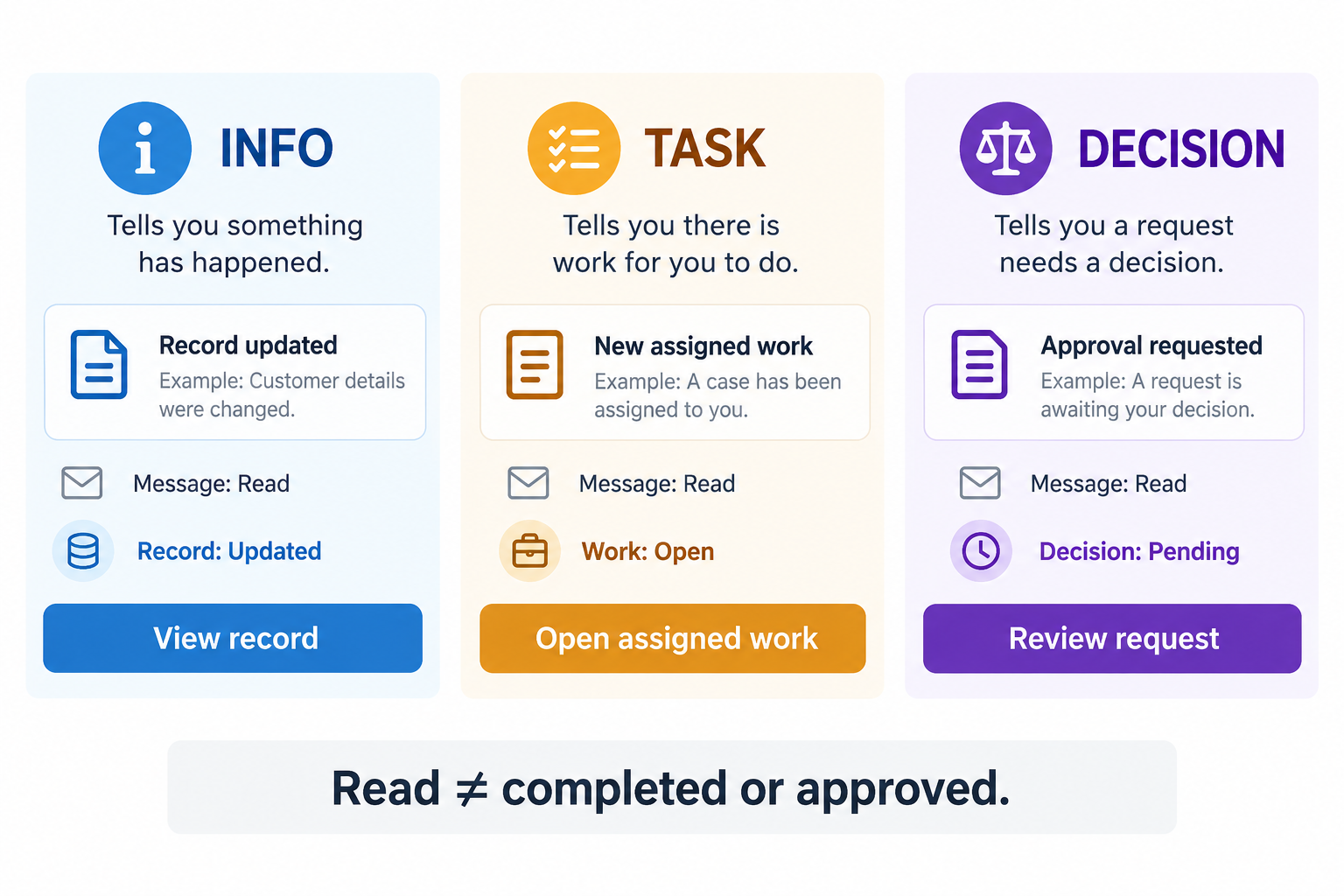
An informational message announces something, such as a report becoming available. A task message asks for work, such as completing a record assigned to its recipient. A decision message directs an authorised person to review a request before approving or rejecting it.
Use examples from the actual process to test the categories. “Request P-104 was submitted” can be information for its creator and a review task for the assigned reviewer. A single event need not create a message with the same meaning for every role.
| Type | Example next step |
|---|---|
| Information | View the record if needed |
| Task | Open the assigned work |
| Decision | Review the request in context |
Do not add an approve button to every message merely to make it appear actionable. An action should follow the person’s role, current data state and evidence requiring review. Opening a review page may be more appropriate than making a decision directly from a short card.
Separate reading from completing the work
Read status means the message was opened or acknowledged according to the application’s rule. It does not prove a task was completed or a decision made. If unread counts become a substitute for outstanding work, the team can lose track of tasks whose messages have already been opened.
Keep message status separate from the business object’s state. For example, a task card may be read while the request still awaits an attachment. When the attachment is supplied, the request changes through its business workflow. Marking a message read should not silently complete the request.
Define what happens if another person finishes the work. An older message should indicate that circumstances changed and link to the current record. Leaving an obsolete action available makes returning after several days unnecessarily confusing, especially when the recipient reasonably expects the notification to reflect the latest state.
Provide enough context to select an action
A useful card identifies the relevant object, the main change and why the recipient received it. A request number distinguishes work with similar titles. Include a deadline only where it is an actual part of the agreed process.
Avoid placing an entire sensitive document in a notification preview. Provide enough context to understand the event, then open details through the appropriate application access. An email or device-screen preview is not necessarily viewed in the same environment as a business workspace.
Microsoft’s app-notification guidance discusses connecting messages to work and giving users notification options. Apply the relevance and context principles without assuming every application needs the same channel or integration.
Reduce repetition according to event meaning
A request can change several times in quick succession. Decide when to update one notification and when a change warrants a separate event. Creating a new card for every minor edit can obscure decisions that genuinely need attention.
Conversely, do not merge messages just because their titles match. Two separate requests still require their own identities and states. Grouping rules should follow the business object and event, rather than a coincidentally similar sentence.
If reminders are supported, connect them to work that remains open. Repeated reminders after completion show that notification rules have become detached from their source records. Specify who can change frequency and how recipients manage messages that are optional rather than mandatory for their role.
Match messages to roles and channels
Select recipients from the responsibility in effect when the event occurs, including supported reassignment. Sending business data to everyone is not a substitute for defining a recipient rule. If work lacks an owner, expose that state to the role responsible for assignment.
WorkEasy’s notification documentation distinguishes action-required items and actions dependent on user privileges. In your own application, opening a link should still check access. Receiving a message must not silently create new permission.
Test three stories: the correct recipient, someone whose task was reassigned and a person opening an old message after completion. Check the link destination and current state in each. A notification should remain understandable when circumstances change, rather than becoming a dead end that leaves its reader unsure whether they still need to act.
For a discussion with Creatyf, bring an event-and-recipient list rather than only a card design. Use the permission matrix to connect information, tasks and decisions with the people actually authorised to continue the process.
Official sources
Build
Continue with related guides.

Preparing a Business Website Project
A practical guide to aligning goals, users, content, ownership, scope, and operational readiness before a business website project begins.

Websites, Web Apps, or Mobile Apps
A decision framework for choosing a website, web app, or mobile app based on user tasks, device capabilities, data, distribution, and operating cost.

From Business Goal to an Actionable Digital Brief
How to connect a business problem, user needs, scope, constraints, evidence, and project decisions in one actionable brief.