

Designing a CSV Import Preview before Data Enters an Application
Show column mappings, row errors, repeated record handling and an outcome summary before users confirm a CSV import.

A CSV import often begins with a simple need: moving a product or customer list from a spreadsheet into an application. Difficulties arise when a file looks tidy in a spreadsheet but the application interprets its columns, dates or identifiers differently. A preview lets users inspect those decisions before their working data changes.
This article uses a fictional inventory example. Its aim is to design an inspectable product flow, rather than prescribe one import process for every system.
Show column meanings as well as table contents
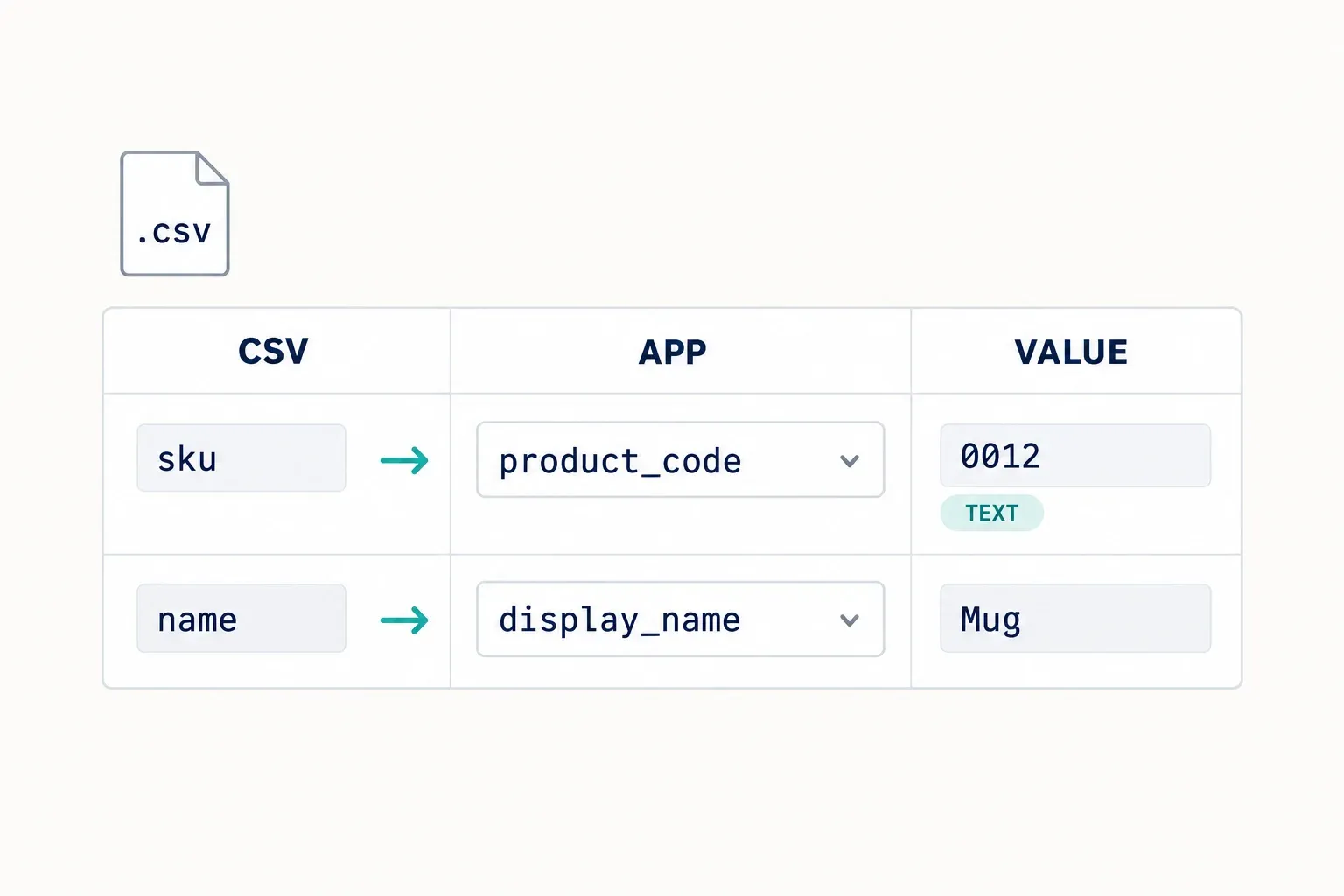
After a user selects a file, display its source columns and their application destinations. A product_code column might map to a product identifier, while name maps to its display name. If a heading is unrecognized, ask the user to choose a destination or mark the column to be ignored.
Show sample values alongside each mapping. The value 0012 as a product code needs to follow the system’s identifier definition, rather than automatically becoming the number 12. Before developing the feature, agree on required columns, formats and permitted empty values.
RFC 4180 documents common CSV rules, including quoting fields containing commas or line breaks. However, the file format alone does not explain the business meaning of each column. The application must define that meaning and show it to the user.
Attach errors to the relevant rows
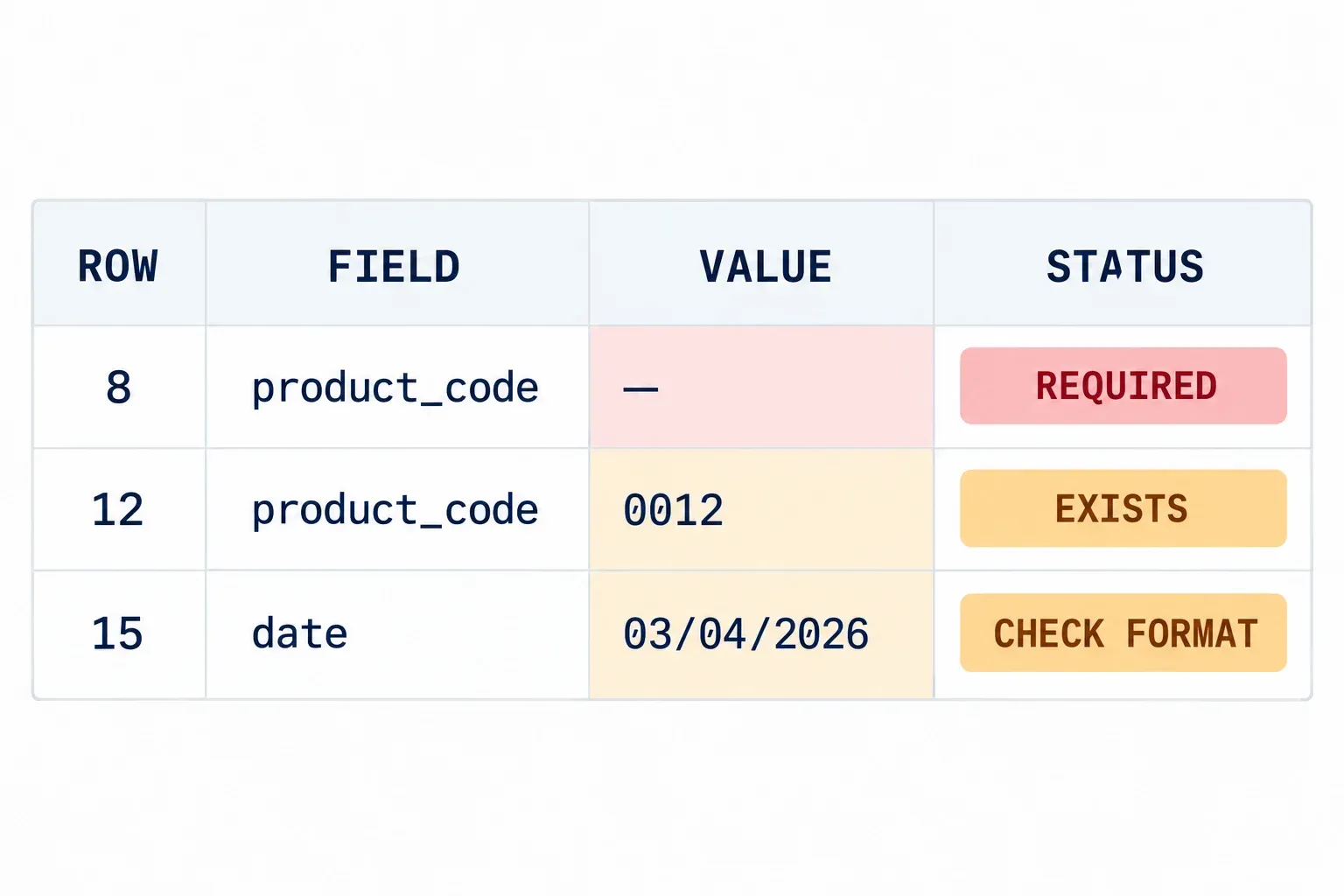
A preview might identify row 8 with a missing code, row 12 with an existing code and row 15 with an unacceptable date. A message saying only “invalid file” provides no useful repair direction. State the row, column, problem and expected form.
For a date such as 03/04/2026, display how the application interprets it. Requesting an agreed date format is preferable to assuming all users share the same convention. Avoid silently changing values; any chosen normalization should be visible in the preview.
Show the number of rows inspected and the number with issues. If the preview displays only part of the table, explain whether validation has covered the whole file or state its inspection limit. Users need to understand the coverage of the result they are viewing.
Decide how repeated identifiers behave
A code can appear twice within a file or already exist in the application. Both situations need explicit decisions. Options might include rejecting the row, skipping an identical record or updating selected fields after confirmation. These are application rules, rather than inherent CSV behavior.
For example, an inventory import might permit a product name update without allowing that same file to alter stock levels. The preview should identify which fields will change. Avoid a single “merge” button that does not explain which data will be retained.
Also document the outcome when a user uploads the same file again. Repetition should not produce unintended additional products. Test that decision with sample data deliberately containing repeated codes, both within the file and in the existing application records.
Try a small file before the complete workflow
Prepare an example file with one new item, one existing identifier, one row without an identifier and one ambiguous date. Ask a user to read the preview before explaining the expected result. If they cannot tell which items will be created or changed, clarify the summary. Use fictional data for this exercise so it does not alter operational records.
In the inventory example, identifier 0012 already exists with an older name. The preview should show the matched identity, previous name and proposed name if the rules allow an update. Mark the row without an identifier with a specific reason. Present these changes side by side so the user does not need another application to understand the import’s effect.
Distinguish preview from execution
Application data can change after the preview is generated but before confirmation. Define how the system handles this situation: checking again, rejecting specific conflicts or asking the user to refresh the preview. The selected behavior should be known to the team and reflected in the result message. An older preview does not prove that the underlying data remains unchanged.
Record an import process identity and result summary so users can trace completed work. If the process is interrupted, explain whether changes were saved and which next step is available. Test repetition with the same example file and account, then compare the final record count against the agreed identity rules.
Request confirmation when decisions are visible
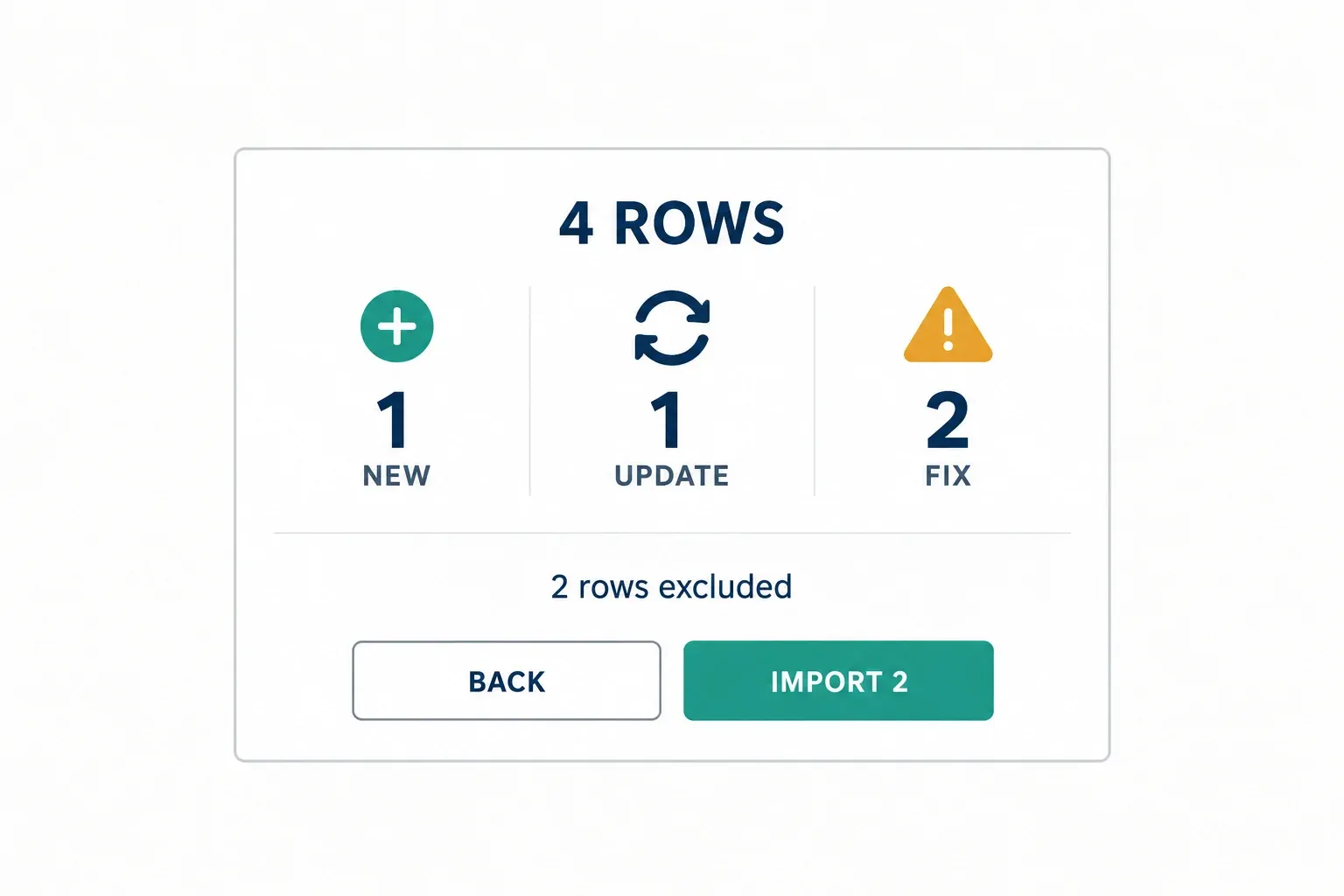
Before importing, summarize the number of new products, updates and rejected rows. If the application supports a partial import, explain that problematic rows will not enter the system. If the entire file needs correction first, the confirmation button should follow that rule.
After processing, show actual results with actionable failure details. A preview is not proof that every change was eventually saved. Also determine how users can undo or correct the result under the system’s capabilities, and explain those limits before confirmation.
The W3C tabular data model helps distinguish table data from metadata describing columns and values. In application planning, use that distinction to write an import contract users can understand.
Provide a sample file, identifier rules and correction needs when discussing application development with Creatyf. The team can review your required flow through Creatyf contact before imports become part of everyday work.
Official sources
Build
Continue with related guides.

Preparing a Business Website Project
A practical guide to aligning goals, users, content, ownership, scope, and operational readiness before a business website project begins.

Websites, Web Apps, or Mobile Apps
A decision framework for choosing a website, web app, or mobile app based on user tasks, device capabilities, data, distribution, and operating cost.

From Business Goal to an Actionable Digital Brief
How to connect a business problem, user needs, scope, constraints, evidence, and project decisions in one actionable brief.