

Web App Attachments: Separate Uploaded, Processing and Ready
Design attachment states from file selection and transfer progress to server processing, readiness and recovery of an individual failed upload.

An attachment status should explain whether a file has merely been selected, is transferring, is being processed, or is ready to use. A progress bar reaching 100 percent does not necessarily mean the final result is available. Without that distinction, users may close the page or continue work while another step is still pending.
Start with the user’s task. Is the attachment evidence for a request, an import source, or a document another person must read? That purpose determines when the application can declare completion and how failures should be recovered. A single “success” label can conceal several important decisions.
Explain requirements before selection
Put supported file types, size limits and permitted attachment counts beside the upload control. If limits apply both per file and to the combined total, explain both. Users should not discover a known restriction only after waiting for a large transfer that could never have been accepted.
Use examples relevant to the work. A request may require a PDF, while a condition report needs an image. Do not advertise extensions that the server processor cannot handle. The feature’s name and guidance should reflect the capabilities that the application actually provides.
Show progress for the transfer stage
After selection, display the filename and size so users can check their choice. Distinguish files waiting in a queue from an active transfer. For several attachments, per-file states are clearer than one percentage that does not identify which file is being sent.
MDN’s upload documentation describes events for monitoring transfer. A transfer-ending event should not independently be interpreted as success for the complete business operation. The interface needs to reflect outcomes actually confirmed by the application rather than an assumed next step.
If a reliable percentage cannot be calculated, give an honest process indicator. Do not animate an increasing number simply to occupy the wait. A clear stage and an appropriate available action are more useful than progress that has no connection to the underlying operation.
Do not equate completed transfer with a ready file
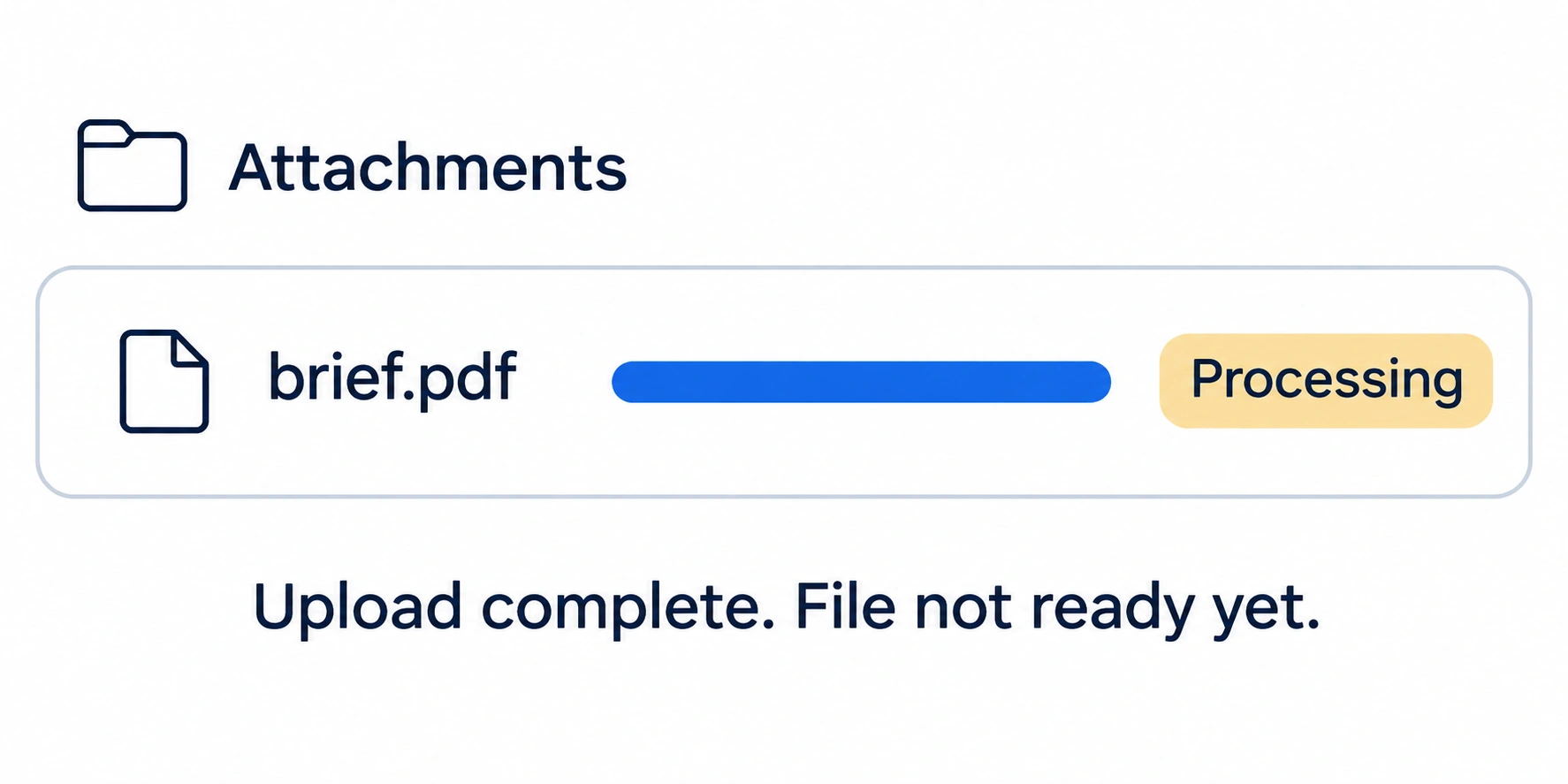
The server may still inspect content, generate a preview or convert a format after receiving every byte. Show only processing steps the system actually performs. Where a further stage exists, name it separately and explain whether the user must wait before proceeding.
Agree what “ready” means with the process owner. For request evidence, it may mean the file is stored and linked to the correct request. For an import, completed upload may still be followed by column mapping and content validation. Those workflows should not make the same completion promise.
Recover the failed file without repeating everything
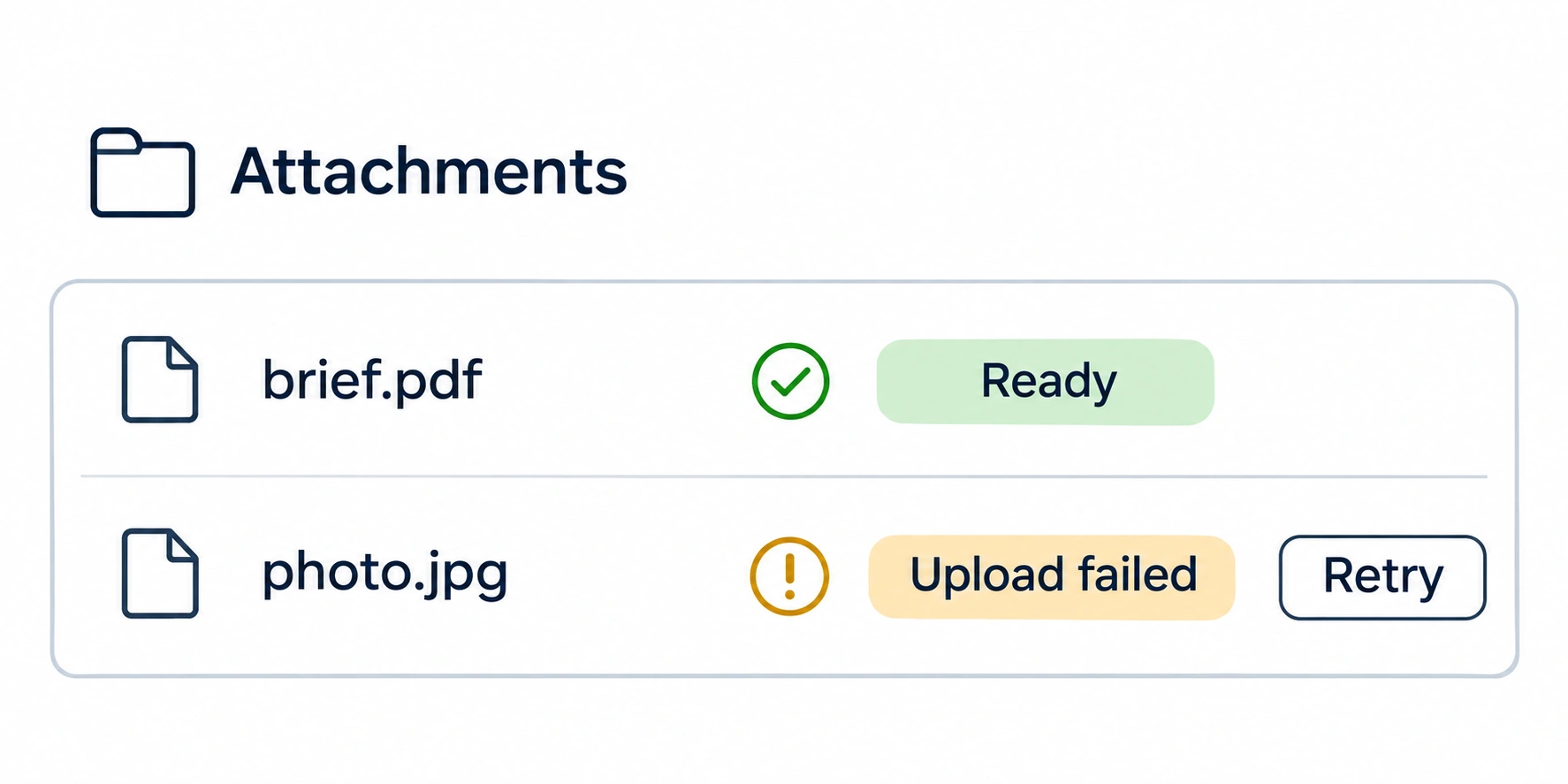
Suppose three files are selected, two become ready, and one transfer fails. Preserve the accepted results where the workflow supports that behaviour. Offer a suitable action on the failed row, such as retrying or replacing the file. Avoid a retry button that silently resends all three from the beginning.
Distinguish a retryable problem from a rejection requiring a different file. Exceeding a size limit will not be resolved by pressing the same button again. Conversely, a failed transfer does not prove that the contents are invalid. State the known reason without inventing a technical cause.
Define how attachments relate to saving the form
Does the file immediately become permanent, or remain temporary until the form is saved? Make that behaviour explicit in the design. A cancelled request needs a rule for temporary files. A saved request with a failed attachment needs a clear decision about whether the work can continue.
Do not call the document complete merely because a filename is visible. Base completeness on confirmed server state. If a user saves again after losing the response, the application also needs to recognize the same attachment so a retry does not create unnecessary copies.
Include file access in the workflow
The browser’s file picker is not the only checking layer. The OWASP File Upload Cheat Sheet discusses server validation, storage and permissions among the controls to design. A “ready” state should not become a claim that a file is safe for every possible use.
Define who can view, replace, download or delete an attachment at each request stage. Previews and downloads should follow the document’s access rules. Knowing a filename does not itself authorize someone to open its contents. These decisions belong in the workflow specification alongside the upload button.
Test realistic work scenarios
Include a successful file, a failed file, mixed results across several files, cancellation and reopening the page. Also consider a saved form whose attachment processing is unfinished. At every stage, users should be able to explain what happened and which actions remain available.
Connect these decisions to actionable form validation messages. When preparing a web app brief with Creatyf, bring example attachments and the rules deciding completeness. That supports a workflow built around real work rather than merely adding a file-upload control to a form.
Official sources
Build
Continue with related guides.

Preparing a Business Website Project
A practical guide to aligning goals, users, content, ownership, scope, and operational readiness before a business website project begins.

Websites, Web Apps, or Mobile Apps
A decision framework for choosing a website, web app, or mobile app based on user tasks, device capabilities, data, distribution, and operating cost.

From Business Goal to an Actionable Digital Brief
How to connect a business problem, user needs, scope, constraints, evidence, and project decisions in one actionable brief.