

Designing CSV Exports for Spreadsheet Use
Agree columns, data scope, identifiers, dates, and formula checks before making CSV export part of a business application's everyday workflow.

An Export button looks straightforward: the user clicks, downloads a file, and opens it in a spreadsheet. However, a successful download does not necessarily preserve the data’s meaning. Codes can lose leading zeros, dates can change interpretation, and text can become a formula.
Design exports as part of the workflow rather than a final addition. During web app planning, ask who uses the file, which application reads it, and what happens after export. These answers help define its structure and appropriate checks.
Start with the file’s purpose
An export for human review differs from a file intended for another system. Reviewers may need understandable column headings. A receiving system may require agreed column names, ordering, and stable values.
A fictional example: administrators want to review unfinished requests. They need a request identifier, date, status, owner, and quantity. They do not automatically need every internal note or personal detail that happens to exist in the database.
Include the purpose, users, and receiving application in the brief. If the file serves two different functions, consider two clearly defined formats. Avoid silently changing a single export so human review still works while another integration breaks.
Agree the column contract
List each column and its meaning. “Date” is ambiguous when the application stores creation, approval, and completion dates. Specific names reduce guesswork. Define column ordering, required fields, and the representation of an empty value.
Separate display labels from values needed by subsequent processing. A translated status is comfortable to read, but an integration may need a stable status code. Decide deliberately whether the file contains the label, code, or both in separately named columns.
Record a contract version when changes affect file users. Extra columns, changed units, or split fields can alter formulas and subsequent processing. Communicate changes through the channel the team actually uses, rather than only in developer notes.
Preserve the meaning of codes, numbers, and dates
An identifier such as 00127 is a code rather than a quantity. Its appearance can change if the reader treats it as a number. Test leading zeros and long codes. Explain an appropriate import step for the receiving application when CSV does not carry explicit data types.
For quantities, define units and decimal conventions. Avoid mixing numbers and unit text in a column intended for calculations without a reason. Separate quantity and unit columns may be clearer when the user’s contract requires both.
Dates need an agreed format. Where time matters, include its zone or explain the reference being used. Test dates whose day and month are easily confused. Opening a file successfully does not prove that the reader interpreted its dates as intended.
Distinguish text from formulas
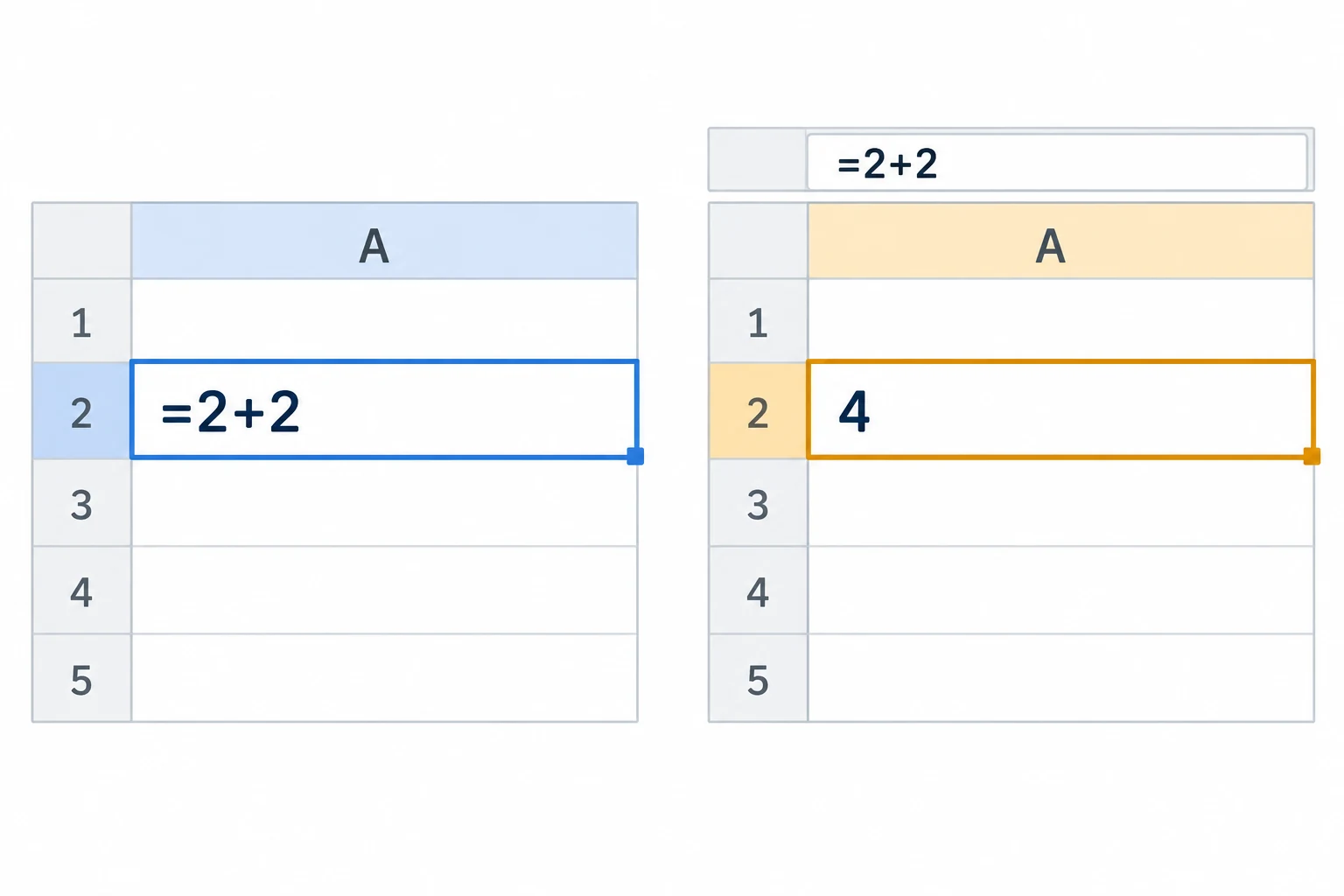
A simple, harmless example is the text =2+2. A reader might expect those characters to remain visible, while a spreadsheet calculates four. This distinction matters for fields accepting user input.
OWASP discusses CSV injection risks when contents are interpreted as formulas. Wrapping a value in quotation marks alone does not guarantee safe behaviour across every application and save-and-reopen workflow. Choose treatment for the file’s intended use and verify it in the receiving application.
Do not place dangerous examples in operational files. Teams can check interpretation using harmless sample data. Examine both the first opening and the result after saving and reopening, because behaviour can depend on the application and the user’s steps.
Respect access scope and filters
A user viewing one branch should not receive the whole organisation merely by clicking Export. Connect the file’s scope to agreed access permissions. Check permissions in the process producing the data, rather than only hiding the button.
Explain whether the export follows screen filters, includes all search results, or contains selected rows. Show a summary before downloading when useful. Ambiguity can make users think records are missing or cause them to share more data than intended.
For large files, define processing feedback and how the result is received. Do not promise an immediate download when processing takes time. Filenames should aid identification without exposing unnecessary information.
Check the actual usage workflow
Prepare sample data containing commas, quotation marks, line breaks, Indonesian characters, empty values, leading-zero codes, and dates. Check that every row still has the correct columns. Reconcile the record count with the selected scope.
The MDN anchor-element documentation explains browser download behaviour. A download attribute helps the user experience, but it does not replace content validation or access checks. Test downloading and reading as separate steps.
Keep a sample contract the team can use for future changes. If the application also accepts files, discuss CSV import previews separately. A useful export moves data with its meaning intact rather than merely producing a file.
Official sources
Build
Continue with related guides.

Preparing a Business Website Project
A practical guide to aligning goals, users, content, ownership, scope, and operational readiness before a business website project begins.

Websites, Web Apps, or Mobile Apps
A decision framework for choosing a website, web app, or mobile app based on user tasks, device capabilities, data, distribution, and operating cost.

From Business Goal to an Actionable Digital Brief
How to connect a business problem, user needs, scope, constraints, evidence, and project decisions in one actionable brief.